 World Wide Offices

Category: Articles
How to Recover a Hacked Instagram Account
TABLE OF CONTENT :
In 2025, around 429 million social media accounts got hacked, and experts expect that number to rise to 580 million by the end of the year.
Instagram accounts make up about 31% of all hacks. And studies show that up to 85% of Instagram users have had their accounts compromised at least once.
The good news is that users can take action and recover their accounts.
In this guide, we will show you how to recover a hacked Instagram account, even if hackers have changed your email, password, or phone number.
How to Know Your Instagram Account Got Hacked
You can spot a hacked Instagram account by watching for these warning signs:
- Password Problems - Your password stops working even though you didn’t change it. Hackers might have stolen your login credentials.
- Strange Posts or Messages - Posts, stories, or direct messages appear that you never sent. Hackers often share spam or phishing links.
- Login Alerts from Unknown Devices - Instagram may send notifications about logins from devices or locations you don’t recognize.
- Changed Account Info - Email, phone number, or profile details changed without your permission. Hackers can take full control this way.
- Suspicious Messages Sent from Your Account - Friends or followers might get strange messages you didn’t send. Hackers may use bots to spread spam.
- Two-Factor Authentication Issues - Repeated failed 2FA attempts or reset requests can show hackers trying to bypass extra security.
- Unknown Apps Connected to Your Account - Third-party apps you didn’t authorize can access your account and steal data.
Common Ways Hackers Gain Access to Instagram Accounts
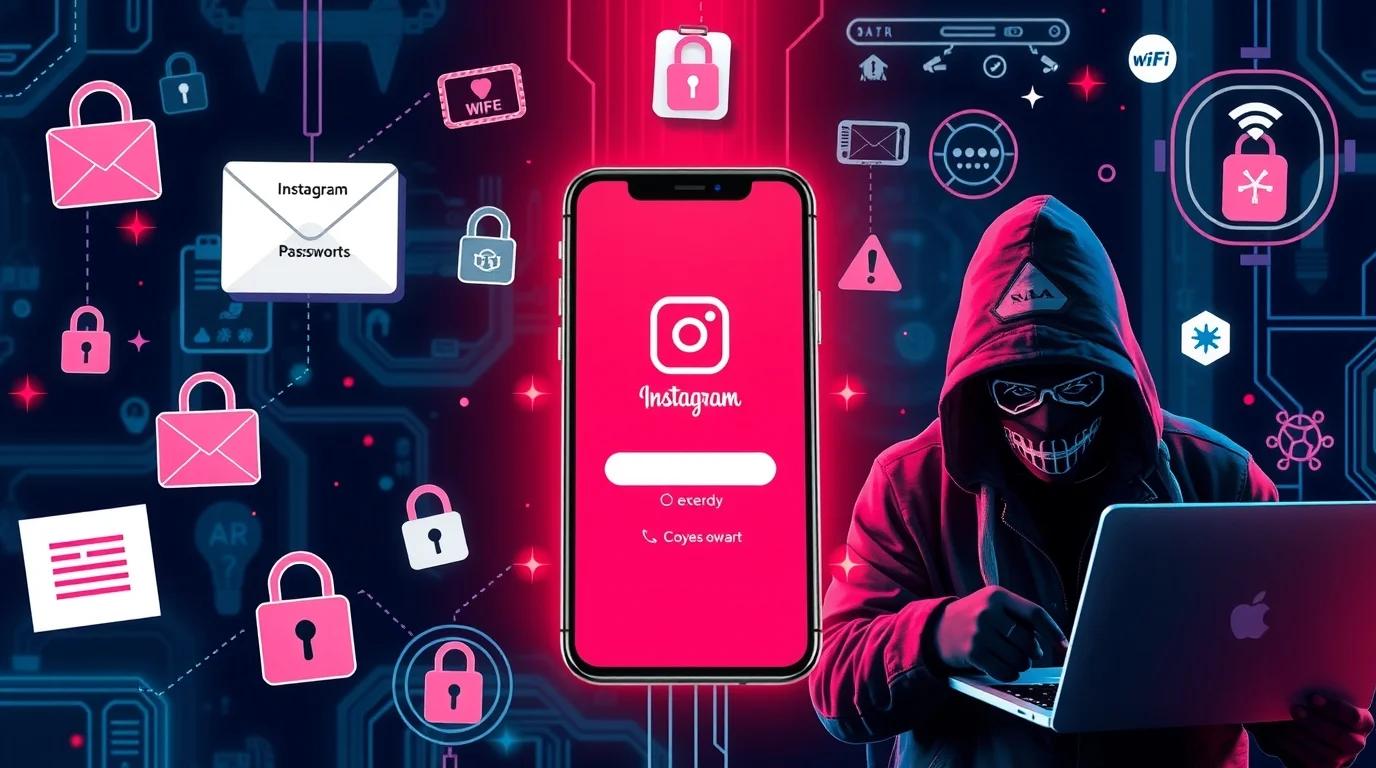
Here, we explain how they hack and the methods they use to access an account without permission.
Phishing Scams
Hackers send fake emails or messages that look like official Instagram notifications. They usually warn about copyright problems, login issues, or verification requests.
Users click on links and land on fake login pages. Once a username and password are typed, hackers get full access. Some attacks even capture two-factor codes.
Leaked or Reused Passwords
Hackers steal passwords from websites that suffer data breaches. Many people reuse passwords on multiple accounts. Hackers use bots to try the same email and password on Instagram and other platforms.
Malware and Keyloggers
Keyloggers capture everything typed on the keyboard, including Instagram passwords and security codes. Other programs, like Vidar or info-stealers, take saved login cookies from browsers. Hackers can use these cookies to access accounts directly.
Weak or Easy-to-Guess Passwords
Passwords like “123456,” “password123,” or a birthday make accounts easy to hack. Hackers use automated tools to guess passwords. They try common patterns, names, dates, and repeated passwords from other breaches until they find the right combination.
Unauthorized Third-Party Apps
Some apps promise more followers, likes, or analytics. Users give these apps permission to access accounts, sometimes without realizing the risk. Hackers use these apps to steal tokens that allow them to log in without a password or post spam messages.
Public Wi-Fi Attacks
Hackers can steal login information on unsecured public Wi-Fi. Fake hotspots with names like “Free Wi-Fi” trick users into connecting. Hackers intercept data using simple tools and capture usernames, passwords, and session information.
SIM Swap Attacks
Hackers trick mobile operators into transferring a phone number to their SIM card. Once they control the number, hackers can reset Instagram passwords and receive two-factor codes. They often gather personal details or use social engineering to convince staff at telecom companies.
Brute-Force Attacks
Hackers avoid login limits by spreading attacks across many IP addresses and using bot networks. They add smart tools that solve CAPTCHA and predict passwords. These strategies let hackers try thousands of login attempts every minute without detection.
What To Do If Your Instagram Account Is Hacked
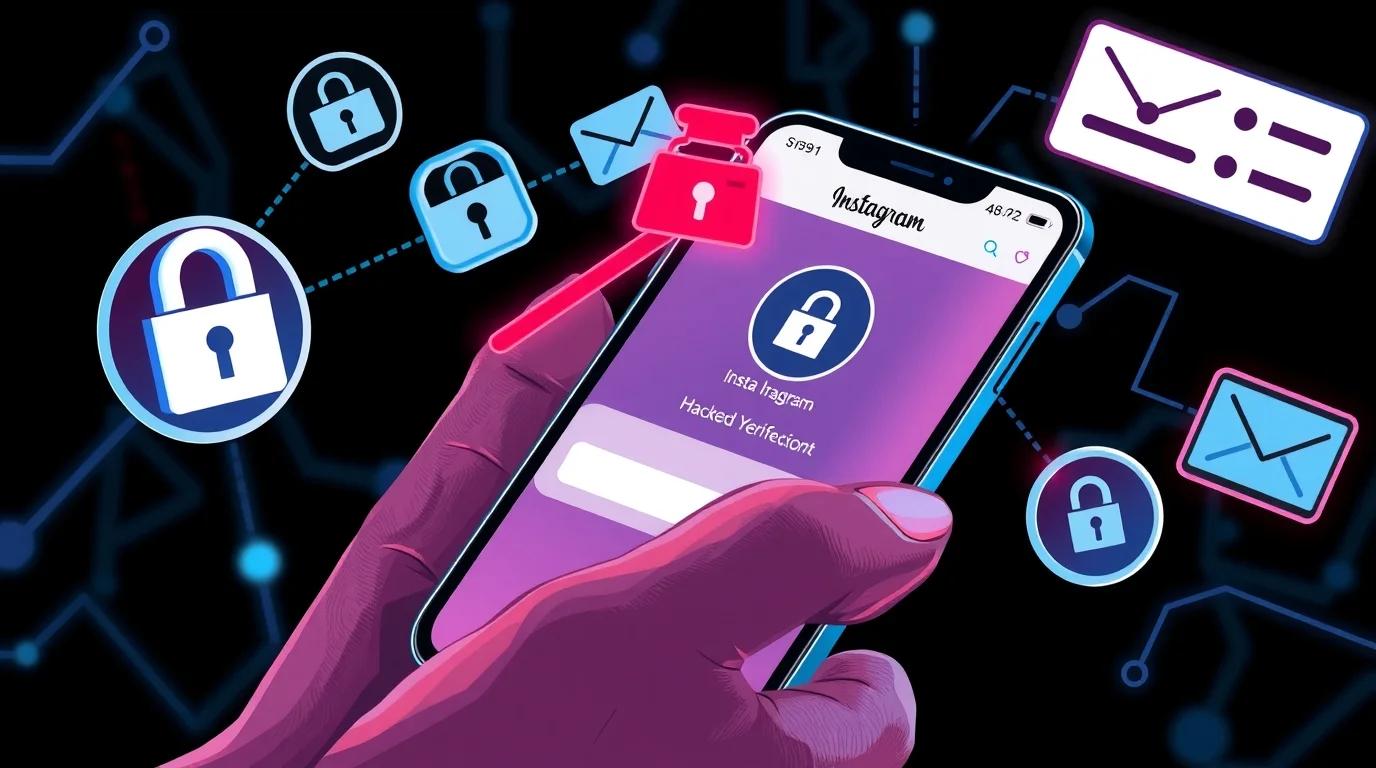
Follow these steps to secure the account quickly.
Check Security Emails from Instagram
Check your email inbox - including spam or junk folders - for a message from [email protected]
If you find a message saying that someone changed your email or login info but you didn’t do that, click “Secure my account” (or “Revert this change”).
Change Your Password Immediately
If you still have access, open your account settings → Security/Password and set a brand‑new, strong password. Use a unique mix: letters, numbers, and symbols. Don’t reuse old passwords.
Log Out of All Devices
After changing the password, log out of all sessions. On Instagram, go to Settings → Security → “Where You’re Logged In” (or “Login Activity”), and choose “Log Out of All Devices.” That forces out any unauthorized logins, even from other countries.
Turn On Two-Factor Authentication (2FA)
Turn on 2FA through SMS or, better yet, an authenticator app. Even if a hacker knows your password, they’ll need a second code to log in - that extra barrier helps a lot.
Check Account Information and Connected Apps
Open profile settings and double‑check email address, phone number, name - anything that looks wrong. If something changed, fix it immediately.
Also, review third‑party apps or services connected to your Instagram. Remove apps you don’t recognise or trust. Hackers sometimes use shady apps to hold onto access.
Scan Your Device for Malware
Hackers use malware and keyloggers to capture passwords silently. Run a trusted antivirus or anti-malware app to remove threats.
Relevant Blog - What To Do If Someone Is Blackmailing You with Nudes
How to Recover Your Instagram Account Using Email or Phone
You can recover your Instagram account by using the "Forgot Password?" feature and receiving a login link or security code via your registered email address or phone number.
Here’s how that works based on official guidance:
- Open the Instagram login screen on your app or browser.
- Tap "Forgot password?" (on an iPhone/iOS device) or "Get help logging in" (on an Android device) below the login fields.
- Enter your username, email address, or phone number associated with the account.
- Tap "Continue" or "Send Login Link".
- Choose your preferred contact method (email or phone number) to receive the recovery link or code.
- Check your email inbox or phone's SMS messages for a message from Instagram.
-
Email - The email will be from [email protected]. Tap the "Reset your password" button or the provided login link.
-
Phone (SMS) - You will receive a security code via text message. Enter this code into the Instagram app when prompted.
-
- Create a new, strong password and regain access to your account.
- Immediately after logging in, navigate to Settings > Security > Two-Factor Authentication to add an extra layer of security.
If You No Longer Have Access to the Email or Phone Number
If the linked email or phone number has been changed or you no longer have access to it, you can still seek support:
- On the login screen after tapping "Forgot password?" or "Get help logging in," enter your username and then look for an option like "Need more help?" or "Can't reset your password?" at the bottom of the screen.
- You will be guided through a support flow. Choose the option that describes your situation, such as "My account was hacked" or "I lost access to my email or phone number".
- You may be asked to verify your identity. For accounts with photos of you, this might involve submitting a video selfie. For others, you may need to provide the original sign-up information.
- Instagram's team will review the information and email you back with further instructions (response times can vary).
Once you regain access, immediately enable Two-Factor Authentication for added security.
Relevant Blog - What to Do If Your Gmail Account Gets Hacked
How to Verify Your Identity With Instagram
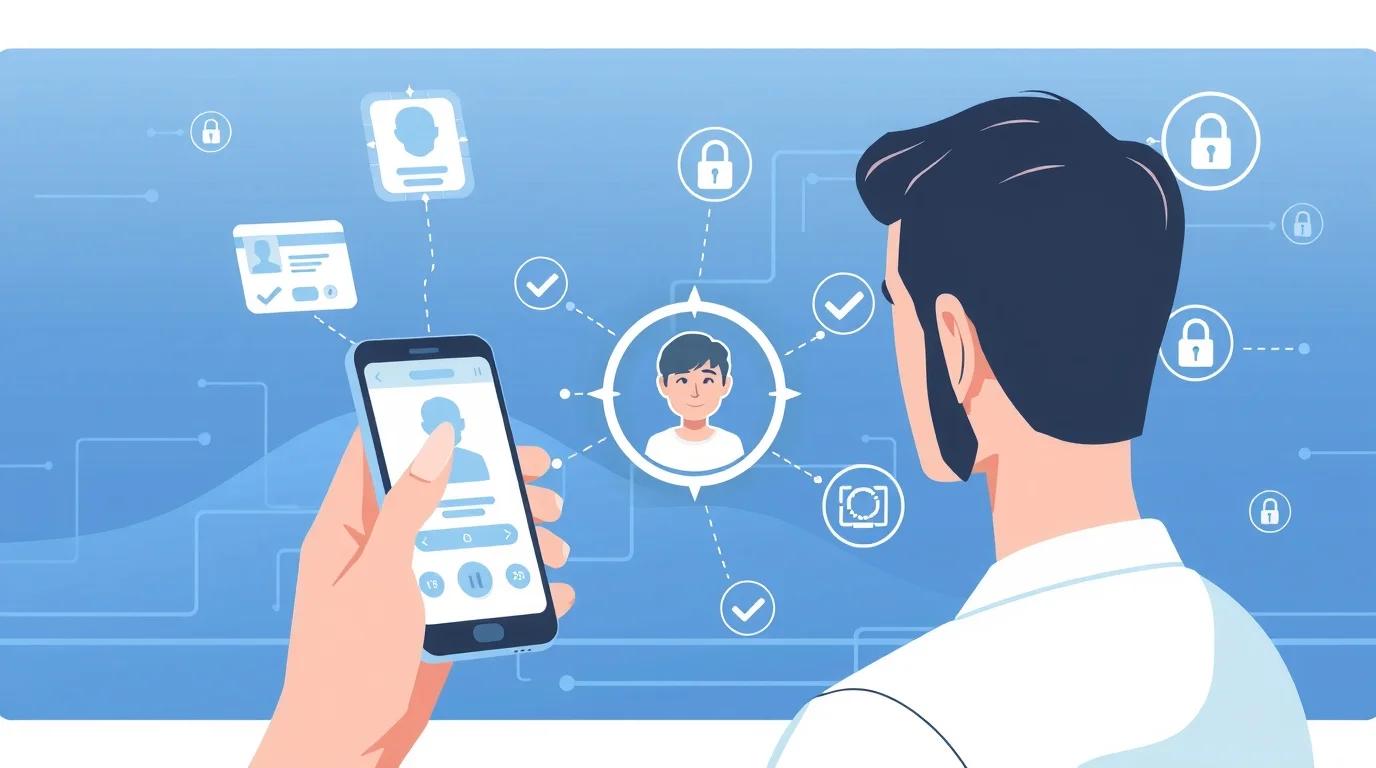
Instagram offers two ways to verify identity. Users can apply for a free verified badge or choose the paid Meta Verified option. Both options require a government-issued ID.
Traditional Free Verification
The free verified badge suits public figures, brands, and businesses with strong public recognition. Instagram applies strict rules for approval.
The account must belong to a real person, registered business, or legal entity. Only one account can represent each person or brand, except for language-based versions. The profile must stay public and include a bio, profile photo, and at least one post.
How to Apply
- Open the Instagram app and go to your profile.
- Tap the menu icon in the top right, then tap Settings > Account > Request Verification.
- Enter your full name and provide the required form of identification (a government-issued photo ID or official business documents).
- Follow the on-screen instructions, potentially including providing supporting links to news articles, and then tap Submit.
Instagram will review your request, and you will receive a notification in your Activity feed within a maximum of 30 days.
Meta Verified Subscription
Meta Verified works for users who do not meet public recognition rules. The program uses a paid subscription and confirms identity with official documents.
Applicants must be at least 18 years old. The account must follow Community Standards and Terms of Service. The profile name and photo must match the government ID. Two-factor authentication must remain active before starting the process.
How to Subscribe
- Open the Instagram app and go to your profile.
- Tap the menu icon, then select Settings > Accounts Center > Meta Verified.
- Select the profile you want to verify and your preferred payment plan (the price varies by region and platform).
- Follow the prompts to confirm your identity by uploading a government ID and potentially a video selfie.
- Once approved, complete the payment process to receive your badge and subscriber benefits.
For more details on the process, you can visit the Instagram Help Center.
How to Remove Unknown Devices and Secure Your Account
To remove unknown devices from your Instagram account, you must use the Login Activity feature to remotely log out unrecognized sessions, then change your password and enable two-factor authentication.
Remove Unknown Devices
You can view and end active sessions from the Instagram app or a web browser:
- Open the Instagram app and go to your Profile (bottom-right icon).
- Tap the menu icon (three horizontal lines) in the top-right corner.
- Tap Settings and privacy, then Accounts Center at the top of the screen.
- Under "Account Settings", tap Password and security.
- Under "Security checks", tap Where you're logged in, then select your Instagram account.
- You will see a list of all devices and locations where your account is active. Review this list for any unfamiliar activity.
- To remove a specific device, tap on it and select Log out.
- To remove multiple or all unknown devices at once, tap Select devices to log out, check the desired devices, and tap Log out.
Secure Your Instagram Account
Immediately take these steps after removing unknown devices to prevent future unauthorized access:
- Change your password - Create a strong, unique password. Do not use the same password for other accounts. Changing your password automatically logs you out of all devices, except the one you use now.
- Enable two-factor authentication (2FA) - Two-factor authentication requires a code to log in from any new device. Even if someone has your password, they cannot get in. Set up two-factor authentication in the same Password and security menu under Two-factor authentication.
- Review connected apps - Check for and remove access for any third-party apps you do not recognize. Go to Settings and privacy > Accounts Center > Password and security. Look for options related to apps and websites.
What to Do If the Hacker Changed Your Email and Password
If a hacker changes both your email and password, go to the official instagram.com page. You cannot use normal recovery methods.
Instagram needs identity verification to give back account access.
Step 1: Check your Email for the Reversal Link
First, check your original email inbox for a security message from [email protected]. Hackers often change email addresses. That change triggers an alert.
- Look for an email with the subject line "Your email address was changed" or similar.
- Inside that email, tap the link that says "secure my account" or "revert this change". A link can instantly undo the hacker's changes and let you create a new password.
Step 2: Use the Instagram Hacked Page
If you cannot find the email or the link does not work, use the official recovery form:
- Open your browser or Instagram app and go to instagram.com.
- Select "My account was hacked" and tap "Next".
- Enter your original username, email address, or phone number. Use the details on file before the hack happened.
Relevant Blog - How to Deal with Social Media Blackmail
FAQs
Can I recover a hacked Instagram account?
Yes. You can recover a hacked account using Instagram’s “Forgot password?” feature, email recovery links, phone verification, or the official hacked account support page.
Can Meta help me recover my Instagram account?
Yes. Instagram support, under Meta, can guide you through identity verification and account recovery if normal recovery methods fail.
Why can’t I recover my hacked Instagram account even after submitting the form?
Most failed recoveries happen when Instagram cannot confirm your identity. Resubmit the video selfie in bright lighting and from different angles to improve chances.
How long does Instagram support take?
Typically, Instagram responds within 5 to 24 hours.
If the hacker changed my username can I still recover the account?
Yes. Enter the original username or any email or phone number ever linked to the account.
Why am I not receiving the Instagram login code?
Common reasons include:
- Email filters or spam folders
- The hacker changed the phone number
- Delays from the mobile carrier
- Instagram temporarily blocked multiple requests
Can Instagram recover deleted posts after a hack?
Instagram keeps deleted posts in the Recently Deleted folder for 30 days. For photos removed from a device, tools like Gbyte Recovery can scan and restore local media.
Can I delete my Instagram account if it’s been hacked?
You can delete a hacked Instagram account, but first regain access. Hackers usually change login information, so follow Instagram’s recovery steps using email, phone number, or the “Need more help?” option.
How do I delete a hacked Instagram account after regaining access?
- Log in to your Instagram account.
- Go to the Delete Your Account page.
- Pick a reason for deleting the account from the dropdown menu.
- Enter your password and confirm.
- Instagram will permanently delete the account after 30 days. No one can restore the account after this period.
What if I cannot regain access to a hacked account?
If you cannot access the account at all, contact Instagram support immediately. Provide proof of identity and account ownership. Instagram may not delete the account instantly, but they can guide you on the next steps.
Can a hacker prevent me from deleting my account?
Yes, if they have full control and have changed your login info, you must regain access first.
Can a permanently disabled Instagram account be recovered?
No. Accounts disabled permanently by Instagram cannot be recovered.
Is it possible to recover an Instagram account after deleting it?
Yes, but only within 30 days of deletion.
Can I know who hacked my Instagram?
Instagram does not provide details about the hacker.
Will Instagram give my account back?
Yes, if you verify your identity and follow Instagram’s account recovery procedures.
On a Final Note
Recovering a hacked Instagram account is possible if you follow Instagram’s recovery steps and verify your identity.
Prevent future hacks by using strong passwords, monitoring login activity, and avoiding suspicious links or apps.
For professional help with account recovery and digital security, TechForing can guide you step by step to secure your Instagram.