 World Wide Offices

Category: Articles
What to Do If Your Computer Has Been Hacked
TABLE OF CONTENT :
A recent global report says a new cyberattack occurs every 39 seconds. Nearly 1 in 3 computers will face some form of hacking attempt this year.
The biggest problem is that most people don’t realize their computer has been hacked until days or weeks later, when the damage is already done.
In this blog, we’ll explain how hackers get in, the signs your computer has been hacked, and what you can do to regain control.
How Do Hackers Get Access to Your Computer
Hackers don’t always need fancy tools to hack your computer; they often take advantage of small mistakes.
Here’s how your computer can be hacked:
- Phishing Attacks - Hackers send fake emails, messages, or websites that look real. One wrong click can give them your login credentials, banking details, or other sensitive information.
- Malware and Ransomware - Malicious software can get in through downloads, email attachments, or infected websites. Some malware spies on your activity, steals files, or encrypts your data and demands a ransom.
- Weak or Reused Passwords - Simple or repeated passwords make it easy for hackers to break into your accounts using password-cracking tools.
- Unsecured Wi-Fi Networks - Public or unprotected Wi-Fi lets hackers intercept your data, track your activity, and inject malware without your knowledge.
- Outdated Software and Operating Systems - Ignoring updates leaves security gaps that hackers can exploit to gain access to your system.
- Infected External Devices - USB drives, external hard drives, or phones can carry malware. Plugging in an infected device can compromise your computer instantly.
- Social Engineering - Hackers manipulate you by phone, fake tech support, or online messages to get you to give them access.
- Compromised Websites and Ads (Malvertising) - Even trusted websites can be hacked to deliver malicious ads or downloads that infect your computer.
- Peer-to-Peer File Sharing - Downloading files from untrusted sources or P2P networks can introduce malware directly into your system.
- Browser Vulnerabilities and Add-Ons - Outdated browsers or unsafe extensions can be exploited to steal data or install malware silently.
- Drive-By Downloads - Just visiting a hacked website can cause malware to download automatically without clicking anything.
- Remote Desktop Protocol (RDP) Exploits - Hackers can exploit poorly secured remote access tools to take control of your computer remotely.
- Spyware and Keyloggers - Hidden programs can record keystrokes, capture screenshots, and monitor activity to steal sensitive information.
- Exploiting Weak Network Security - Weak router passwords or poorly configured firewalls can give hackers a backdoor into your office network.
- Zero-Day Exploits - Hackers use unknown software flaws before they are fixed to get into your system easily.
How Do You Know If Your Computer Has Been Hacked
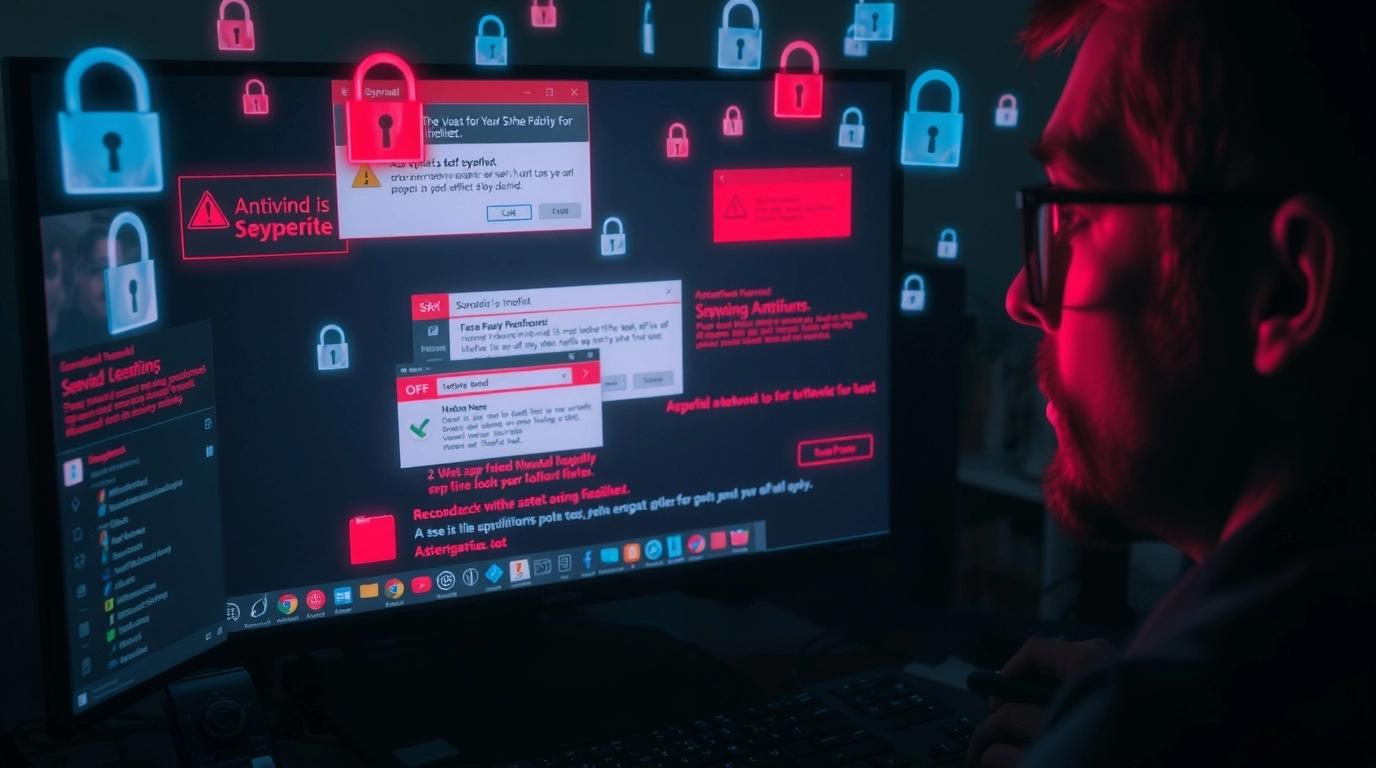
If someone you don’t know, claiming to be from tech support, asks you to download software to access your computer, it’s a clear sign of a hack.
But even if you didn’t give anyone access, your computer could still be infected with spyware.
Here are 12 signs your computer has been hacked:
- Unusually Slow Performance - If your computer suddenly takes a long time to open programs or browse the web, it could be running hidden malware in the background.
- Frequent Crashes or Freezing - Random shutdowns, blue screens, or constant freezing may mean viruses or malware are interfering with your system.
- Pop-ups and Strange Messages - Unexpected ads, error messages, or windows asking for passwords are classic warning signs.
- New Programs You Didn’t Install - Hackers often install software without your consent to spy on you or control your computer remotely.
- Antivirus Disabled or Missing - If your antivirus or firewall suddenly turns off or disappears, it’s a sign that malware may have taken control.
- Unusual Network Activity - Your internet may be slower or spike unexpectedly, or unknown devices may appear on your network, showing data is being sent without your knowledge.
- Passwords Not Working - Accounts getting locked or emails about password changes you didn’t request are major warning signs of a hack.
- Strange Emails or Messages Sent From Your Accounts - Hackers may use your accounts to send spam, phishing messages, or malicious links to your contacts.
- Files Missing, Encrypted, or Corrupted - Ransomware or malware can delete, lock, or corrupt your files, making them inaccessible until demands are met.
- Web Browser Redirects - Being sent to unknown websites or seeing new toolbars and search engines installed without your consent is often a sign of hacking.
- Unusual CPU or Hard Drive Activity - If your fan is always running or your storage is unusually active, a hacker could be mining cryptocurrency or running hidden programs.
- Unrecognized Login Attempts - Notifications of logins from unknown devices or locations on your accounts suggest someone else has access to your system.
Immediate Actions to Take After Your Computer Has Been Hacked
According to IBM’s 2024 Cost of a Data Breach Report, a cyberattack on a person or small business can cost over $10,000 if you don’t act quickly.
Here’s a step-by-step guide to help you take back control of your computer.
01 # Disconnect and Quarantine Your PC
Immediately disconnect your computer from the internet. Unplug Ethernet cables, disable Wi-Fi, or switch to “airplane mode.”
- Why it matters - Hackers often maintain real-time access to your device. Disconnecting prevents them from stealing more files or installing additional malware.
- Extra tip - If you’re on a shared network, inform others to prevent the malware from spreading. For businesses, alert IT staff immediately to isolate the device.
- Example - Ransomware often encrypts files in minutes across all connected drives. Disconnecting stops the encryption from spreading.
02 # Don’t Turn Off or Reboot the Device (in Some Cases)
Even though it may seem like a good idea to restart, some attacks, like ransomware or spyware, leave information that can help experts understand the hack.
- For serious breaches - Leave the computer on and consult a professional.
- For minor issues - You can reboot after taking screenshots and documenting suspicious activities.
- Tip - Avoid performing normal work on the device until the system is secure.
03 # Change Your Passwords Using Another Secure Device
Never update passwords from the compromised computer; hackers may have installed keyloggers.
- Use another secure device, such as a smartphone or a clean laptop.
- Reset passwords for email, banking, cloud storage, and social media accounts first.
- Use strong, unique passwords (12+ characters with letters, numbers, and symbols).
- Password managers like LastPass, Bitwarden, or 1Password can help generate secure passwords.
04 # Implement Two-Factor (or Multi-Factor) Authentication
Two-factor authentication (2FA) adds extra security even if a hacker knows your password.
- Use apps like Google Authenticator, Microsoft Authenticator, or Authy.
- Avoid SMS codes if possible, as SIM-swap attacks can intercept them.
- Tip - Enable 2FA on all financial accounts, email, and social media platforms for maximum protection.
05 # Run Full Antivirus and Anti-Malware Scans
Install or update trusted antivirus software and run both quick and deep scans.
- Recommended tools - Malwarebytes, Bitdefender, Norton, or Windows Defender.
- Use a bootable antivirus rescue disk (Kaspersky Rescue Disk, Bitdefender Rescue CD) if malware prevents normal scanning.
- After scanning, quarantine or delete all infected files.
06 # Remove External Devices / Disconnect USB Drives
Malware can spread through USB drives, external hard disks, and SD cards.
- Disconnect all external devices immediately.
- After cleaning your computer, scan these devices individually with antivirus software before reconnecting.
- Example - Conficker malware historically spread via USB drives, infecting multiple systems quickly.
07 # Back Up Critical Files (Before Wiping, if Needed)
Before taking more drastic measures, back up essential documents, photos, and work files.
- Use external hard drives or USB drives, but avoid cloud storage until malware is fully removed.
- Encrypt sensitive files for extra security. Tools like VeraCrypt or BitLocker are recommended.
08 # Perform a Hard Drive Wipe and OS Reinstall if Necessary
If malware persists after scans, the safest solution is to wipe your hard drive and reinstall the operating system.
- Windows - Use “Reset this PC” → “Remove everything.”
- Mac - Boot into Recovery Mode → erase the disk → reinstall macOS.
- Linux - Reinstall the operating system after wiping partitions.
- Always install updates and security patches before restoring files.
09 # Remove Suspicious Software or Apps
Hackers often hide malware in fake or unknown programs.
- Windows - Control Panel → Programs and Features → uninstall suspicious programs.
- Mac - Applications folder → manually uninstall unknown apps.
- Browsers - Remove unknown extensions and reset browser settings.
- Tip - Look for recently installed programs that you didn’t authorize.
10 # Restore Firewalls to Default
Hackers may disable your firewall to maintain access.
- Windows - Control Panel → Windows Defender Firewall → Restore Defaults.
- Mac - System Preferences → Security & Privacy → Firewall → Turn On.
- For stronger protection, consider using a hardware firewall built into your router.
11 # Notify Your Contacts
If email or social accounts were compromised, hackers might impersonate you.
- Alert friends, family, and coworkers not to click suspicious links.
- Notify banks or credit card companies immediately if financial information was accessed.
- Report identity theft to local authorities or government agencies.
12 # Check All Financial Accounts
Hackers may target your financial information
- Review bank accounts, PayPal, credit cards, and e-commerce accounts
- Set up alerts for unusual activity
- Consider a fraud alert or credit freeze with your credit bureau
13 # Document and Keep Record
Keep detailed records of suspicious activity
- Screenshots of pop-ups, ransomware messages, or unauthorized logins.
- Note the date and time of incidents.
- Store all details safely - it can help law enforcement investigate the breach.
14 # Seek Professional Help
If the hack is serious, don’t try to resolve it alone. Cybersecurity experts like Techforing can remove malware, recover lost files, and make your computer safe again.
If you are dealing with ransomware, do not pay the hackers; consult a specialist first.
Common Mistakes to Avoid After Being Hacked
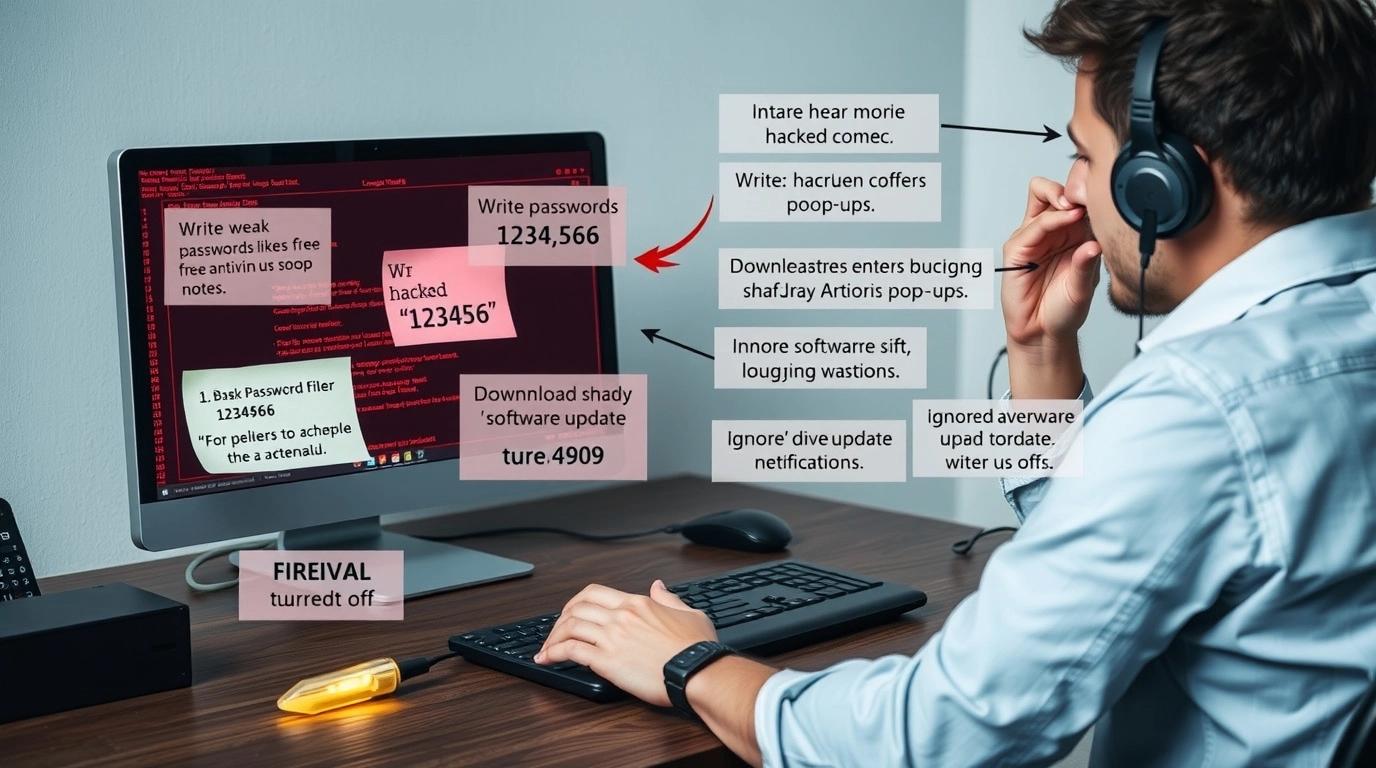
Finding out your computer has been hacked can be scary. But doing the wrong things can make the problem worse.
Here are the most common mistakes and how to avoid them:
Not changing all passwords quickly
Some people only change one or two passwords. Hackers can still get into accounts that weren’t changed. Make sure to update every important password right away.
Using weak or repeated passwords
Using the same password for many accounts or simple passwords like “123456” makes it easy for hackers. Always use strong, different passwords for each account.
Downloading untrusted antivirus software
Trying to fix the problem with random software from the internet can bring in more malware. Only use antivirus or security programs from trusted sources.
Ignoring system and software updates
Outdated software and operating systems have vulnerabilities that hackers can exploit. Keep everything updated to block known security holes.
Skipping a full system scan
A quick scan might miss hidden malware. Run a full system scan to make sure all threats are found and removed.
Not reporting the service providers
Not telling your bank, email provider, or other services can cause more problems. Reporting the hack helps protect your accounts and recover data.
Changing passwords on the hacked device
If your device is still compromised, hackers can capture new passwords as you type them. Use a different, secure device to update passwords.
Leaving external drives connected
USB drives or external hard drives can have malware. Disconnect them to stop the infection from spreading.
Turning off firewalls or antivirus software
Some people think disabling security features will help fix the problem. It actually makes your system more vulnerable. Keep these protections active.
How to Monitor Your Computer for Future Hacks
Hackers may try to attack your computer again, and simple monitoring steps can help you catch threats quickly.
Regularly Check Account Activity
Most services provide logs of recent logins, including device types, IP addresses, and locations. Review these logs sometimes to identify any unfamiliar activity.
Use Endpoint Detection and Response Tools
EDR tools CrowdStrike and SentinelOne watch your computer’s activities in real-time. They can detect suspicious behavior, such as unusual file modifications or unauthorized access attempts, and alert you immediately.
Use Dark Web Monitoring
Some services, like SpyCloud or Have I Been Pwned, let you know if your emails, passwords, or personal info appear on the dark web. This can warn you early if your data has been stolen.
Watch Your Network Traffic
You may use network monitoring tools like Wireshark or GlassWire to watch outgoing and incoming traffic. Unusual data transfers or connections to unfamiliar IP addresses can indicate malicious activity.
Learn About Phishing and Scams
Know the common tricks hackers use, like fake emails or messages. Being aware can help you avoid falling into traps that let hackers in.
Frequently Asked Questions
How to tell if your computer has been hacked in Windows 11?
Check for slow performance, unknown programs, error messages, pop-ups, disabled security features, or unknown devices on your network. Use Task Manager to see suspicious processes, run Windows Defender or a trusted antivirus scan, and watch account activity for strange logins.
What happens if your computer has been hacked?
Hackers can steal personal information, banking details, and login credentials. They may install ransomware to lock your files, send spam from your accounts, or spy on your online activity.
Can hackers access my webcam or microphone?
Yes. Some malware lets hackers secretly use your webcam or microphone to spy on you. Cover your webcam when not in use, check app permissions, and use security software to watch for suspicious activity.
Can a hacked computer be fixed?
Yes. Most hacked computers can be fixed. Steps usually include removing malware, updating the system, changing passwords, and securing accounts. In serious cases, you may need a full system reset and reinstall the software safely.
When should I contact cybersecurity experts?
Call experts if sensitive data like bank accounts, personal IDs, or business files is stolen, or if ransomware locks your computer.
If your computer is seriously hacked, or you want expert help to keep your information safe, Techforing can help.